
When Salesforce sends an email from your address, the receiving server asks your domain whether Salesforce is allowed to. If the domain has no answer, the message is delivered to spam, and Salesforce still shows it as sent. Four things have to be in place, and each one can be checked in a minute.
The steps are written for a domain on Google Workspace, and they are the same on Microsoft 365 apart from the Google records. You need a Salesforce admin and whoever can edit DNS for the domain.
Find out which system sent the email
One domain usually has several senders, and each one needs its own entry in SPF and its own DKIM key. Before changing anything, find out which system sent the message that went to spam. Salesforce keeps a record of every email it sends from a record or a flow.
| Sender | What it sends | SPF entry | DKIM |
|---|---|---|---|
| Google Workspace | Email your people write in Gmail | include:_spf.google.com | A TXT record from the Google Admin console |
| Salesforce | Flows, auto-replies, alerts, email sent from a record | include:_spf.salesforce.com | A DKIM key made in Setup, published as two CNAME records |
| A marketing or receipts tool | Campaigns, receipts, password resets | The include that tool gives you | The records that tool gives you |
Email that a user sends through their connected Gmail account, as in an Einstein Activity Capture setup, leaves through Google and is signed by Google. The rest of this page is about the email Salesforce sends itself.
Check what is published today
Run these from any terminal, with your domain and your selectors in place of the examples. They read public DNS and change nothing.
# SPF: one record, and it names Salesforcedig +short TXT example.com # DMARCdig +short TXT _dmarc.example.com # Salesforce DKIM: both selectorsdig +short CNAME sf2026._domainkey.example.comdig +short CNAME sf2026a._domainkey.example.comA domain that is set up correctly answers like this:
"v=spf1 include:_spf.google.com include:_spf.salesforce.com ~all""v=DMARC1; p=none; rua=mailto:dmarc@example.com"sf2026.abc123.custdkim.salesforce.com.sf2026a.def456.custdkim.salesforce.com.An empty answer on any line is the gap to close. The steps below take them in the order that causes the least risk to mail already flowing.
Step 1: Add Salesforce to your SPF record
SPF is one TXT record on the domain that lists who may send for it. Open the record with your DNS host and add include:_spf.salesforce.com before the final all term.
| Type | Host | Value |
|---|---|---|
| TXT | @ | v=spf1 include:_spf.google.com include:_spf.salesforce.com ~all |
- Keep one SPF record. Two records that both start with
v=spf1make every check fail, so merge the includes into the record you have. - SPF allows 10 DNS lookups in total. Each include uses at least one, so remove senders you no longer use.
~allmarks other senders as suspect. Move to-allonce your DMARC reports show nothing legitimate failing.
Step 2: Create a DKIM key in Salesforce
DKIM signs each message so the receiver can confirm it came from a sender your domain approved. In Setup, type DKIM in Quick Find, open DKIM Keys, and click Create New Key.
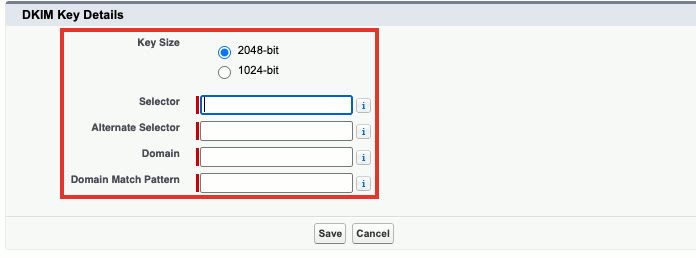
| Field | What to enter | Example |
|---|---|---|
| Key Size | 2048-bit, unless a rule you follow requires another size | 2048-bit |
| Selector | A short name that no other sender on the domain uses | sf2026 |
| Alternate Selector | A second name for the second key | sf2026a |
| Domain | The domain in your From addresses | example.com |
| Domain Match Pattern | The domains this key signs for. Enter the domain alone to cover it, or add *.example.com after a comma to cover subdomains as well | example.com |
Click Save. Salesforce creates the key in an inactive state and takes a short while to prepare the records for the next step.
Step 3: Publish the two CNAME records
Open the key you just made. When TXT Record Status reads Published, the page shows a CNAME Record and an Alternate CNAME Record.
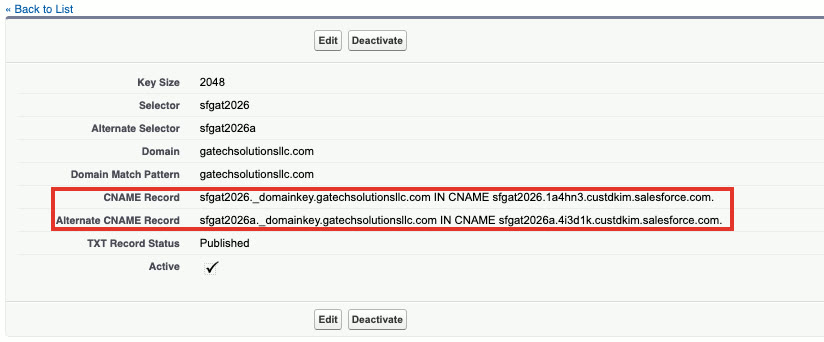
Add both with your DNS host, exactly as Salesforce shows them.
| Type | Host | Points to |
|---|---|---|
| CNAME | sf2026._domainkey | sf2026.abc123.custdkim.salesforce.com |
| CNAME | sf2026a._domainkey | sf2026a.def456.custdkim.salesforce.com |
Most DNS hosts add the domain to the Host field for you. If you paste the full name there, the record is saved as sf2026._domainkey.example.com.example.com and never resolves. Run the two dig commands from the check above until both answer.
Step 4: Activate the key
Go back to the key in Setup and click Activate. Salesforce signs nothing until you do. The key list then shows a check mark under Active for the domain.
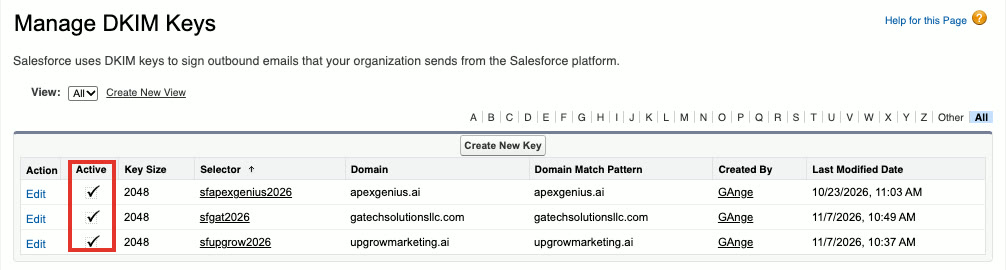
Make one key for every domain that appears in a From address. A key for example.com does nothing for mail sent from example.org.
Step 5: Add a DMARC record
DMARC tells the receiving server what to do when a message fails both SPF and DKIM for your domain, and where to send a daily report. Start with a policy that only reports.
| Type | Host | Value |
|---|---|---|
| TXT | _dmarc | v=DMARC1; p=none; rua=mailto:dmarc@example.com |
Read the reports for a week or two. They name every server sending as your domain, including the ones nobody remembered. When everything legitimate passes, change p=none to p=quarantine, and later to p=reject. Google describes the record in its DMARC setup guide.
Step 6: Verify the From addresses
Salesforce sends only from addresses and domains it has verified. In Setup, open Organization-Wide Addresses. These are the shared From addresses that flows, alerts and users can send as, such as a sales or billing mailbox.
- Click Add.
- Enter the Display Name and Email Address, choose which profiles may use it, and choose its Purpose.
- Save. Salesforce emails a link to that address, and someone with access to the mailbox has to click it.
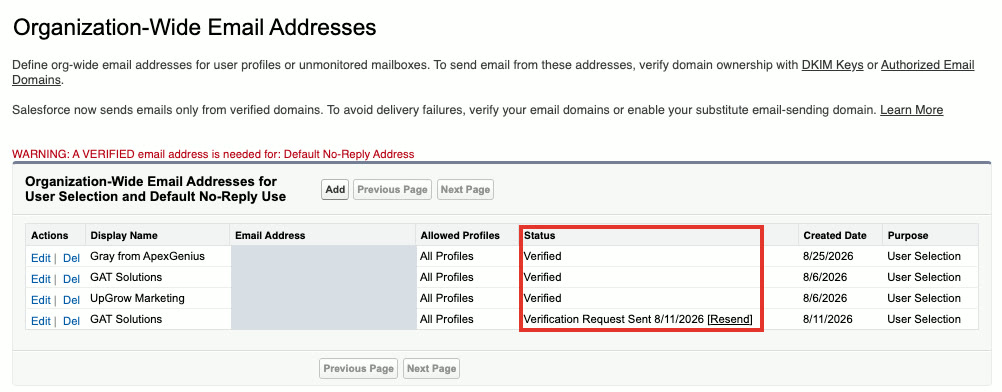
A row that reads Verification Request Sent has a Resend link beside it. The red line at the top of this capture is a second thing to watch for: Salesforce wants a verified address set as the Default No-Reply Address.
Individual users are checked too. Salesforce explains both levels in its email verification requirements. To test one domain, open Deliverability in Setup, scroll to Email Domain Status, enter the domain, and click Check Verification.
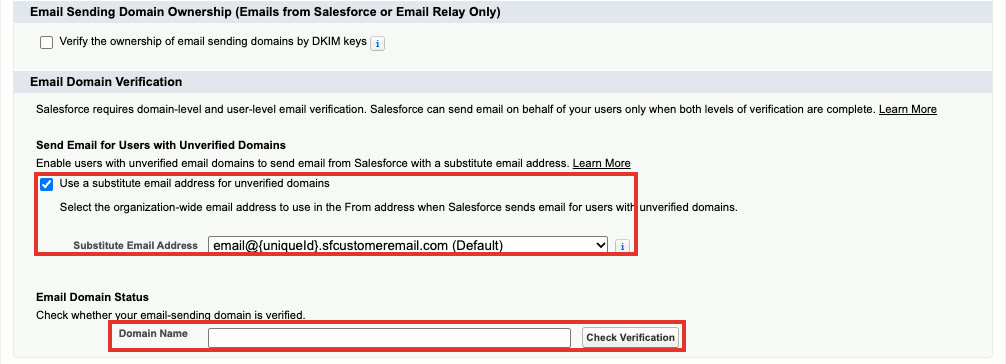
When Use a substitute email address for unverified domains is on, mail from a domain you have not verified still goes out, from a Salesforce address in place of yours. Customers see an address they do not recognize, so treat that setting as a safety net and verify the domain. Salesforce describes it here.
Step 7: Set the Deliverability page
Stay on Deliverability and scroll to the top. This page decides whether the org may send at all.
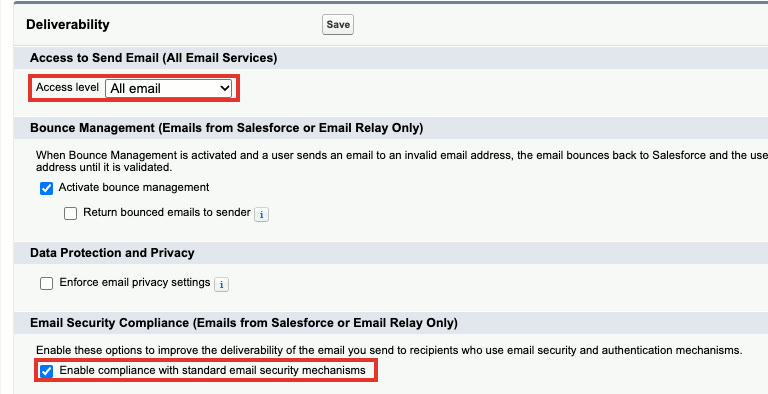
| Setting | Options | Production value |
|---|---|---|
| Access level | No access, System email only, All email | All email |
| Activate bounce management | On or off | On. Bounces come back to Salesforce and the bad address is flagged |
| Return bounced emails to sender | On or off | Your choice. On sends the bounce to the user as well |
| Enable compliance with standard email security mechanisms | On or off | On |
| TLS Setting | Preferred, Required, Preferred Verify, Required Verify | Preferred. Required drops mail to any server that cannot encrypt |
| Verify the ownership of email sending domains by DKIM keys | On or off | Optional. Lets an active DKIM key stand as proof you own the domain |
| Use a substitute email address for unverified domains | On or off, with an address to use | On, as a safety net |
Click Save at the top of the page after any change.
Step 8: Send a test and read the headers
Open Test Deliverability in Setup, enter your own address, and click Send. Salesforce sends a set of test messages from the range of servers it uses, which shows whether your mail server accepts them.
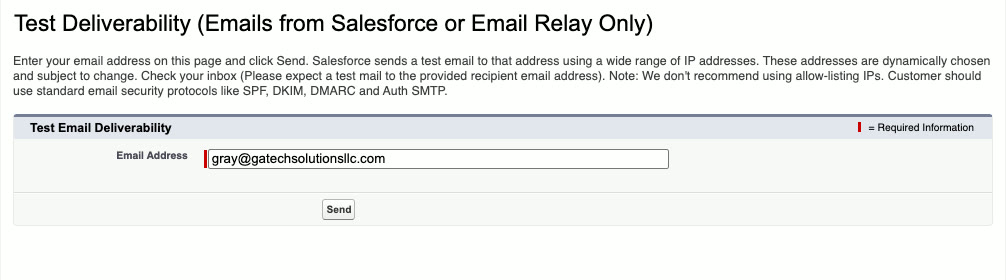
That test proves the mail arrives. To prove it is trusted, send one real email from a Lead or Contact to a Gmail address, open it, click the three dots, and choose Show original. Read three lines:
- SPF: PASS.
- DKIM: PASS, with your domain named beside it.
- DMARC: PASS.
If SPF passes for a Salesforce address and not for yours, look at the Return-Path. Salesforce can use its own return address so it can collect bounces, and in that case the DKIM line is the one that ties the message to your domain. DMARC passes when either check lines up with the From address.
Three mistakes that send mail to spam without an error
None of these raises an error in Salesforce or with the DNS host. The email is sent, and the first sign is a customer who never saw it.
- The SPF record leaves Salesforce out. The domain was set up for Google years ago and nobody added Salesforce when the first flow started sending.
- A DKIM record was pasted with its labels. A DKIM TXT value has to begin with
v=DKIM1. If the on-screen labels from an admin console are copied along with the key, the record still saves, and every signature fails. - Only one of the two CNAME records was published. Mail signed with the first key passes and mail signed with the second fails, so the problem comes and goes.
Set it up in a sandbox
A sandbox uses the same Setup pages as production, with four differences. SPF and DMARC sit on the domain, so they already cover the sandbox and need no change.
The sandbox starts with customer email turned off
A new or refreshed sandbox has Access level set to System email only. That protects real customers from test runs, and it is also why a flow that emails fine in production sends nothing in the sandbox.
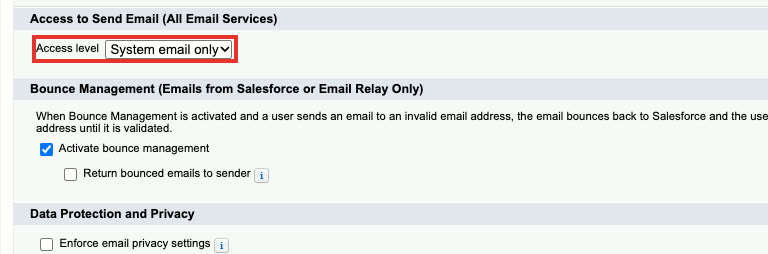
| Access level | What goes out | When to use it in a sandbox |
|---|---|---|
| No access | Nothing | A sandbox nobody should email from |
| System email only | Automatic system email such as password resets and new user notices | The resting state, every day |
| All email | Everything, including flows, alerts, Apex and user email | Only while you run a test, then set it back |
The sandbox signs with its own DKIM key
Open DKIM Keys in the sandbox. If the list is empty or the key is not active, repeat steps 2 to 4 there. Give the sandbox key selectors that production does not use, such as sfuat2026 and sfuat2026a, because each key gets its own pair of CNAME records on the same domain.

From addresses carry their status over
Open Organization-Wide Addresses in the sandbox and read the Status column again. An address that was still waiting on its link in production can still be waiting in the copy.
The recipients are real people
A sandbox copied from production holds your customers' real email addresses on Leads and Contacts. Salesforce adds .invalid to the email of most users in a new sandbox, and it leaves Leads and Contacts as they are. Before you raise Access level, do three things.
- Correct the email on your own user record, and confirm it from the link Salesforce sends.
- Create a test Lead or Contact with your own address, and send only to that record.
- Check that no scheduled flow or batch job is due to email a list while the level is All email.
Then set Access level to All email, send the test, read the headers as in step 8, and set the level back to System email only the same day.
Every record and setting on one page
| Item | Where it lives | What good looks like |
|---|---|---|
| SPF | DNS, TXT on the domain | One record that includes _spf.salesforce.com |
| Salesforce DKIM key | Setup, DKIM Keys | 2048-bit, Active, one for each sending domain |
| DKIM CNAME records | DNS, two CNAMEs under _domainkey | Both resolve to custdkim.salesforce.com |
| DMARC | DNS, TXT on _dmarc | A policy and a reporting address |
| From addresses | Setup, Organization-Wide Addresses | Every row Verified, and a Default No-Reply Address set |
| Domain status | Setup, Deliverability, Email Domain Status | Verified for each sending domain |
| Access level | Setup, Deliverability | All email in production, System email only in sandboxes |
| Email security compliance | Setup, Deliverability | On |
| Headers on a real message | Gmail, Show original | SPF, DKIM and DMARC all pass |
Which emails to check first
Start with the messages a customer is waiting for, because a missed one costs a deal or a renewal before anyone looks at DNS.
- The auto-reply a new lead gets after filling in a form.
- Quotes, proposals and renewal notices sent from a record.
- Case replies and status updates from your service team.
- Appointment and intake reminders sent by a flow.
Send one of each to a Gmail address and a Microsoft address you control, and read the headers on both.
Frequently asked questions
Why are my Salesforce emails going to spam?
Most often the receiving server cannot confirm that Salesforce is allowed to send for your domain. Either the SPF record does not include Salesforce, or there is no active Salesforce DKIM key for the domain. With a DMARC policy of none, that mail is not rejected. It is delivered to spam.
What is the SPF record for Salesforce?
Add include:_spf.salesforce.com to the one SPF record your domain already has. A domain that also sends through Google Workspace ends up with v=spf1 include:_spf.google.com include:_spf.salesforce.com ~all.
How do I set up DKIM in Salesforce?
In Setup, open DKIM Keys and click Create New Key. Enter a selector, an alternate selector, your domain and a domain match pattern. Salesforce gives you two CNAME records. Publish both with your DNS host, then come back and activate the key.
Why does Salesforce DKIM need two CNAME records?
Salesforce keeps two keys for each domain, one on the selector and one on the alternate selector, so it can change keys without a gap in signing. If only one record is published, part of your mail goes out with a signature nobody can check.
Do I need DMARC if SPF and DKIM pass?
Yes. DMARC tells the receiving server what to do when a message fails both checks, and where to send reports. Google asks every sender to authenticate and asks bulk senders to publish a DMARC record. Start with p=none and a reporting address, then tighten it.
Why does my sandbox not send email?
New and refreshed sandboxes start with the Deliverability access level set to System email only, so flows and Apex cannot email customers by accident. Change it to All email for a test, and change it back when you finish. The sandbox also needs its own active DKIM key, with selectors that production does not use.
Official references
- Salesforce Help: create a DKIM key
- Salesforce Help: email verification requirements
- Salesforce Help: substitute email address for unverified domains
- Google Workspace Admin Help: email sender guidelines
- Google Workspace Admin Help: set up SPF
- Google Workspace Admin Help: set up DMARC
GAT Solutions is an independent Salesforce consultancy. Salesforce is a trademark of Salesforce, Inc., and Gmail and Google Workspace are trademarks of Google LLC.