
Einstein Activity Capture connects a Google Workspace mailbox to Salesforce and files each customer email on the matching Lead or Contact, so nobody has to log it by hand. The setup takes three people: a Google Workspace admin, a Salesforce admin, and the person who owns the mailbox.
This guide uses Gmail and one user, with contacts and calendar sync left off. Add users to the same configuration when the first mailbox checks out. If your reps' replies are landing in spam, fix that first with the SPF, DKIM and DMARC setup guide.
What you need before you start
- A Salesforce edition and license that include Einstein Activity Capture. Salesforce lists the limits in its setup considerations.
- A Salesforce admin who can assign permission sets and edit sharing settings.
- A Google Workspace admin who can review third-party app access.
- The user's primary Google Workspace mailbox. Connect the primary address and never an alias, and make sure it matches the email on their Salesforce user record.
Step 1: Allow Salesforce.com in Google Workspace
Do this first. Until a Workspace admin allows the app, every user who tries to connect lands on the screen below, and nothing on that screen lets them continue.

In the Google Admin console, open Security, then Access and data control, then API controls, then Manage App Access. Find Salesforce.com and choose its access level. Google explains each level in Control which apps access Google Workspace data.
Apply the change to the organizational unit or group that holds your Salesforce users. Leaving the top-level unit selected applies it to everyone in the company. Leave your other Workspace security settings as they are, because this one change is all the error needs.
Step 2: Assign the license and the permission set
In Salesforce Setup, open Users, then Users, and click the person's name. Under Permission Set License Assignments, click Edit Assignments and add Standard Einstein Activity Capture User.

On the same record, under Permission Set Assignments, click Edit Assignments and add Standard Einstein Activity Capture. The user needs both. The license alone gives them nothing to use.

Step 3: Create the configuration and pick the users
In Setup, type Einstein Activity Capture in Quick Find and open Settings. On the Configurations tab, click New Configuration, or open the one you already have. A configuration is a named group of users who share the same sync rules.
- Give it a Name and a Description, and keep Active checked.
- Under User and Profile Assignments, set Search to Users and move each person from Available to Selected.
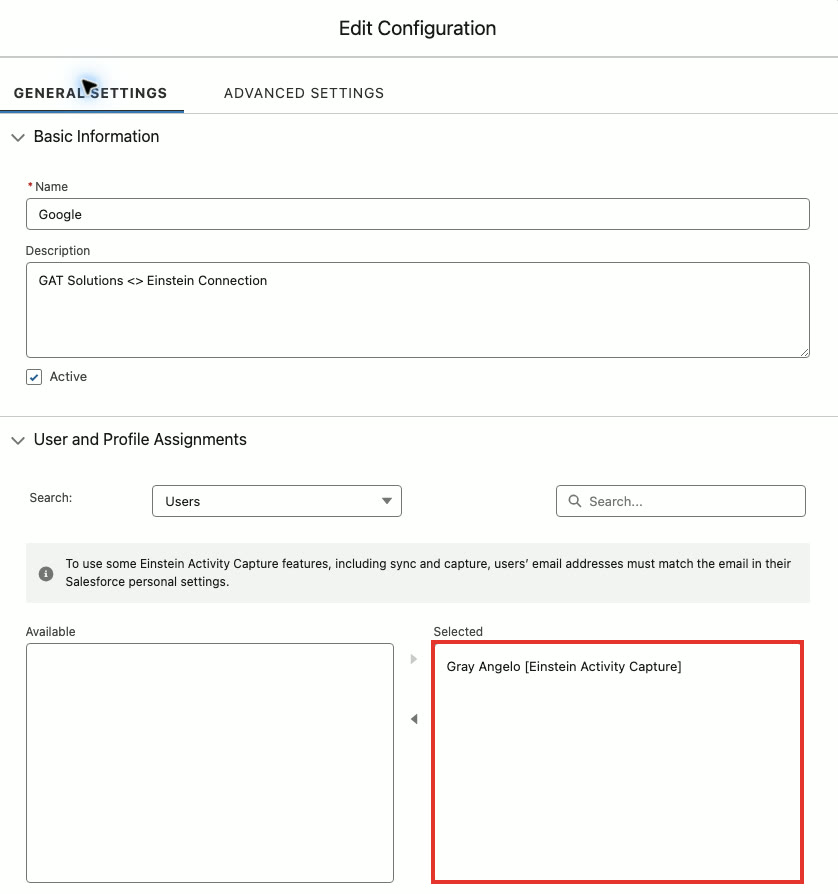
Salesforce prints a reminder on this screen that matters later: sync and capture work only when the user's mailbox address matches the email in their Salesforce personal settings.
Step 4: Choose what syncs
Scroll down the same tab to Review Settings. There are three switches, and Salesforce turns all three on for a new configuration.
- Emails: on. Email is added to the activity timeline of the related records.
- Events: off, unless you want Google Calendar events in Salesforce too.
- Contacts: off, unless you want Google contacts and Salesforce contacts kept in step.
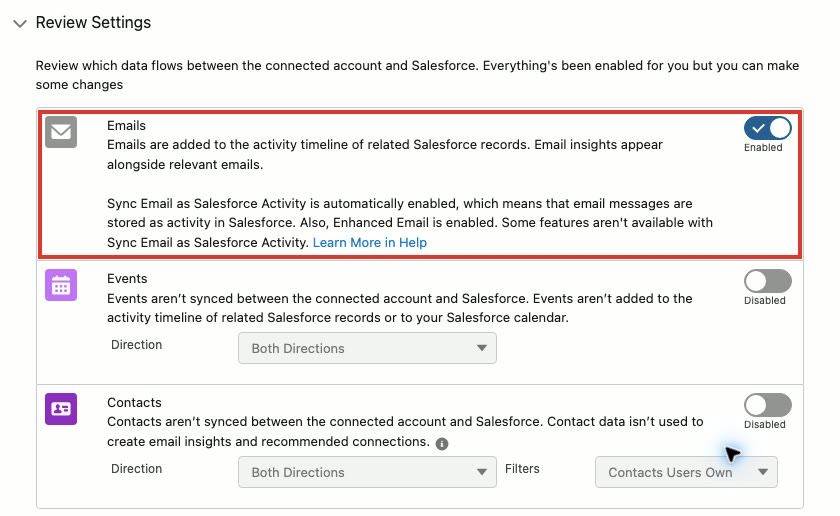
With Emails on, Salesforce turns on Sync Email as Salesforce Activity and Enhanced Email. Each captured message is saved as an email message record with a completed task, which is what makes it show in reports and flows. Those records count toward your data storage. Salesforce covers the trade-offs in Considerations for Sync Email as Salesforce Activity.
Step 5: Set how far back and how much of each email
Open the Advanced Settings tab of the configuration.
- Filter by Sent Date: the number of days of earlier email to bring in when a user first connects. Set it to 0 to capture new email only.
- Entire Email Message: the header, subject and body are captured.
- Header Only: the sender, recipients, date and time are captured, and the subject and body are left out.
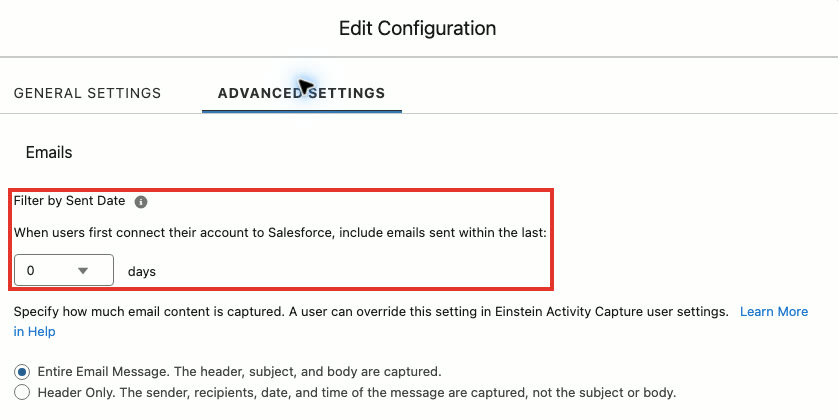
The Events and Contacts sections on this tab apply only if you turned those switches on in step 4. Click Save when both tabs are set.
Step 6: Set who can see captured email
Do this before the first mailbox connects, because email starts arriving as soon as it does. In Setup, open Sharing Settings and find Activity under Organization-Wide Defaults. Set Default Internal Access and Default External Access to Private.
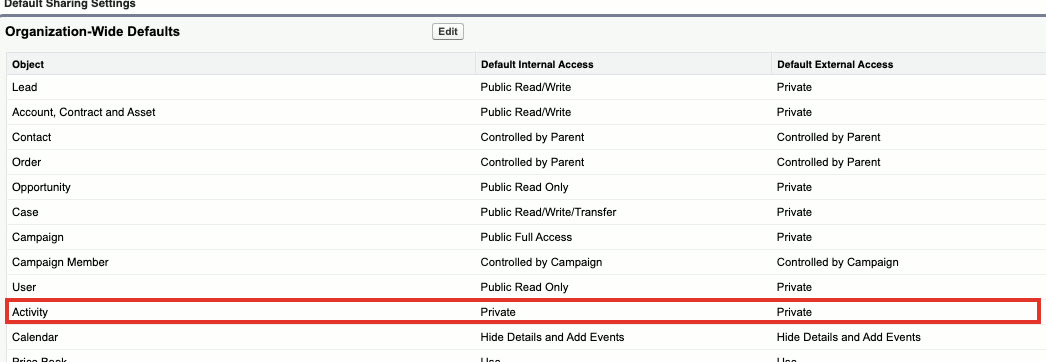
Private keeps ordinary users to their own activity. Admins and anyone with broad data permissions can still open it, so check who holds those permissions before you store full message bodies.
Next, go back to Einstein Activity Capture Settings and open the Excluded Addresses tab. Click Add and enter your own company domain, which Salesforce lists as an Internal Domain. Email between colleagues then stays out of Salesforce. Add any outside address or domain that should never be captured, such as your law firm or your bank.
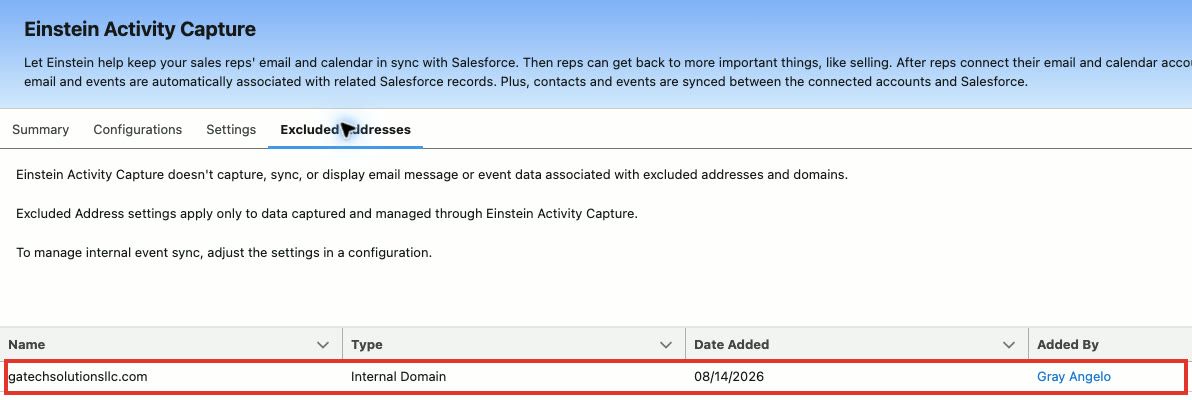
On the Settings tab beside it, keep Prevent Automated Email Replies from Being Shared and Prevent Sensitive Emails from Being Shared turned on.
Step 7: The user connects their mailbox
The mailbox owner does this step, signed in to Salesforce as themselves. An admin cannot do it for them.
- Click your profile picture and choose Settings.
- Type Email and Calendar Accounts in Quick Find and open it under Connected Accounts.
- Click New Account and choose Google.
- Pick your primary company mailbox.
- Read what Google lists, then click Continue and Allow.
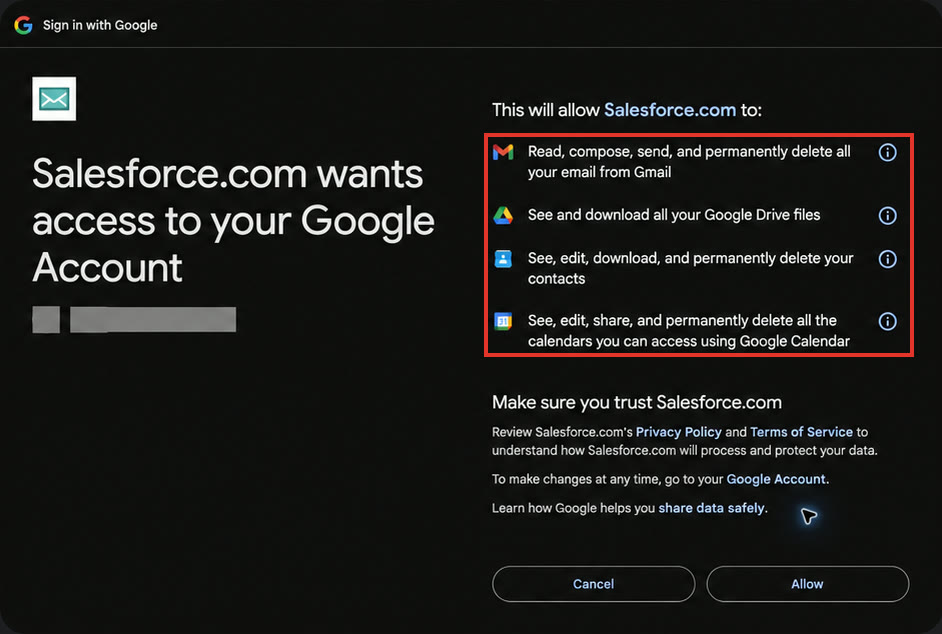
Google sends you back to Salesforce, where Google now shows under Your Connection. Salesforce's own steps are in Connect Your Email and Calendar to Salesforce.

Step 8: Check the connection
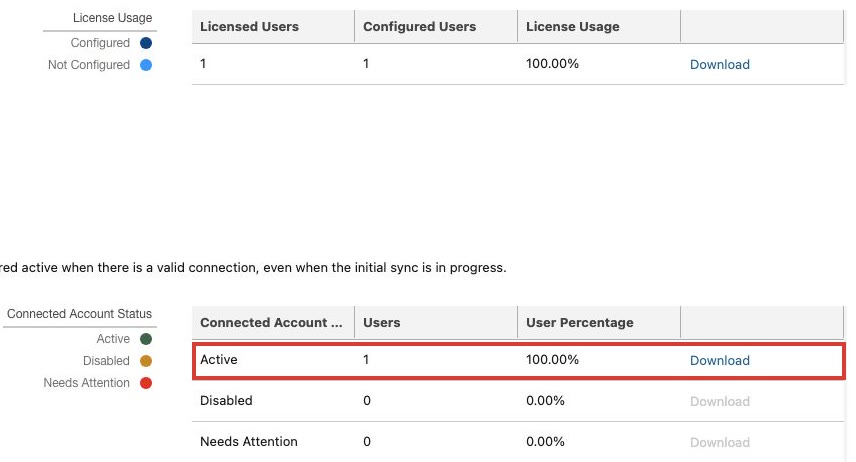
Back in Setup, open Einstein Activity Capture and then Status & Metrics. On the Connection Status tab, read three things.
- Licensed Users and Configured Users match. A gap means someone has the license and is in no configuration.
- Connected Account Status shows the user under Active, with 0 under Disabled and 0 under Needs Attention.
- Initial Sync Status, further down the page, reads Complete.
Step 9: Prove it with one test email
Active means the account is connected. It does not mean an email has been filed, so send one and look.
- Create a test Lead whose email is an outside mailbox you control.
- From the connected company mailbox, send that address an email with a subject you will recognize.
- Reply once from the outside mailbox.
- Open the Lead and check its activity timeline for both messages.
Keep four results apart when you report back:
| Result | What it means | Where you see it |
|---|---|---|
| Sent | Gmail accepted the message | The Sent folder |
| Received | The other inbox got it | The outside mailbox |
| Captured | Salesforce stored it as an email and a task | An activity report, or the record |
| Matched | The task is linked to the right Lead or Contact | The Lead's activity timeline |
Salesforce says the first capture can take up to 24 hours. After that, new email usually shows on the record within minutes.
Every setting on one page
| Setting | Where it lives | Value in this guide |
|---|---|---|
| Salesforce.com app access | Google Admin, Security, API controls | Allowed for your Salesforce users |
| Standard Einstein Activity Capture User | User record, Permission Set License Assignments | Assigned |
| Standard Einstein Activity Capture | User record, Permission Set Assignments | Assigned |
| Selected users | Configuration, General Settings | One user to start |
| Emails | Configuration, Review Settings | Enabled |
| Events | Configuration, Review Settings | Disabled |
| Contacts | Configuration, Review Settings | Disabled |
| Filter by Sent Date | Configuration, Advanced Settings | 0 days |
| Email content | Configuration, Advanced Settings | Entire Email Message |
| Activity default access | Setup, Sharing Settings | Private, internal and external |
| Internal Domain | Einstein Activity Capture, Excluded Addresses | Your company domain |
| Prevent Automated Email Replies from Being Shared | Einstein Activity Capture, Settings | On |
| Prevent Sensitive Emails from Being Shared | Einstein Activity Capture, Settings | On |
| Email and Calendar Accounts | The user's own Settings | Google connected, primary mailbox |
When an email is missing
| What you see | Likely cause | What to check |
|---|---|---|
Google shows Error 400: access_not_configured | Salesforce.com is not allowed in Google Workspace | Step 1, with a Workspace admin |
| Account is Active, email is not on the record | The address on the Lead or Contact differs from the address the person sends from | The From address on the real message |
| Outbound email shows, the reply does not | The reply came from another address, such as the base address behind a Gmail plus-address | Put the real sending address on the record |
| Nothing from one company ever shows | The address or domain is excluded | Excluded Addresses |
| Nothing shows for anyone on day one | Initial processing | Wait up to 24 hours, then recheck Status & Metrics |
| Email is captured and linked to no record | The matching flow is off | The standard flow Activities: Match Email to Records is active |
| The same email shows twice | It was also logged by hand | Stop manual logging for connected users |
Before you add the whole team
One mailbox is a setup task. A sales team is a decision about data, and four questions are worth answering before you add everyone to the configuration.
- How much history comes in? Every day you allow under Filter by Sent Date is multiplied by every user who connects.
- Who can read it? Activity sharing, the role hierarchy and broad permissions decide whether a manager can open a rep's customer email.
- What stays out? Legal, banking, recruiting and personal addresses belong on the excluded list before day one.
- What will you report on? Captured email is stored as tasks and email messages, so decide which reports and follow-up rules should count it.
Frequently asked questions
Why does Google say Access blocked when I connect Gmail to Salesforce?
Your Google Workspace admin has not allowed Salesforce.com yet. The screen shows Error 400: access_not_configured, and the mailbox owner cannot get past it. A Workspace admin reviews Salesforce.com under Security, Access and data control, API controls in the Google Admin console.
Does Einstein Activity Capture import old email?
Only as far back as you allow. The Filter by Sent Date setting on the configuration's Advanced Settings tab sets how many days of earlier email come in when a user first connects. Set it to 0 to capture new email only.
Can I capture email without syncing contacts and calendar events?
Yes. Emails, Events and Contacts are three separate switches under Review Settings in the configuration. Turn Emails on and leave the other two off. Google's permission screen still lists Gmail, Drive, Contacts and Calendar, because that screen does not change with your Salesforce settings.
Who can see the emails Einstein Activity Capture stores?
That follows your Activity sharing settings. With the Activity organization-wide default set to Private, ordinary users see their own. Admins and anyone with broad data permissions can still open them, so review your sharing model before storing full message bodies.
Why is an email missing from the Lead or Contact?
The usual causes are an address on the record that does not match the address the person really sends from, an excluded address or domain, a message sent before the mailbox was connected, or processing time. Salesforce says initial capture can take up to 24 hours.
Why do I see the same email twice on the timeline?
Someone logged it by hand after Einstein Activity Capture had already synced it. Salesforce warns that manual logging on top of automatic sync creates duplicate activity records.
Official references
- Salesforce Help: Einstein Activity Capture overview
- Salesforce Help: considerations for setting up Einstein Activity Capture
- Salesforce Help: considerations for Sync Email as Salesforce Activity
- Salesforce Help: connect your email and calendar to Salesforce
- Google Workspace Admin Help: control which apps access Google Workspace data
GAT Solutions is an independent Salesforce consultancy. Salesforce and Einstein are trademarks of Salesforce, Inc., and Gmail and Google Workspace are trademarks of Google LLC.