
Only one Salesforce Authenticator app can be connected to a Salesforce user at a time, and an admin cannot register it for you (Disconnect Salesforce Authenticator from a User's Account, Salesforce, read 16 Oct 2026). So every fix below ends with you connecting the app yourself. The admin's part is to clear the old connection and give you a way through the login screen while you do.
A different login error? Match it to its fix in Can't log in to Salesforce?
Which Salesforce Authenticator problem do you have?
| What you see | Likely cause | Fix | Who |
|---|---|---|---|
| The approval request never reaches your phone | Notifications off for the app, or a slow network | Allow notifications for Salesforce Authenticator, then enter the six-digit code the app shows instead of waiting for the push | You |
| New phone, and the old one still works | Your connected accounts live on the old device | Transfer your backup to the new phone (steps below) | You |
| New phone, and the old one is lost, wiped or never backed up | Salesforce still expects the old app | Admin disconnects the app and issues a temporary code; you reconnect | Admin, then you |
| Login fails after you deleted or reinstalled the app | The account was removed before a backup or reconnection | Admin disconnects the app; you reconnect at your next login | Admin, then you |
| “Error: Invalid or expired verification code. Try again.” | A broken Authenticator connection, or, in a third-party app, a phone clock out of sync | Admin disconnects and you reconnect; for other apps, set the phone's time automatically | Admin or you |
| “The allowed number of attempts has been exceeded.” | Too many failed codes; the account is locked for a while | Stop retrying and ask your admin for a temporary code | Admin |
| You are an admin and Authenticator is no longer offered | Salesforce's phishing-resistant MFA rule for privileged users | Register a passkey or security key | You, with another admin if blocked |
Sources for the rows, in order: (Salesforce Authenticator Troubleshooting, Salesforce, read 16 Oct 2026), (Transfer Connected Accounts, Salesforce, read 16 Oct 2026), (Set Up Salesforce Authenticator on a New Device Without a Backup, Salesforce, published 8 Oct 2026), (Login Fails After Deleting Authenticator During Device Migration, Salesforce, published 30 Oct 2025), (Invalid or expired verification code, Salesforce, published 25 Aug 2025) and (the phishing-resistant MFA article, Salesforce, published 14 Oct 2026).
How to move Salesforce Authenticator to a new phone
This works only if you backed up your accounts before the switch. From app version 4.0 the backup uses a verified email address and a passcode of four digits or more (Back Up Your Connected Accounts in Salesforce Authenticator, Salesforce, read 16 Oct 2026).
- On the old phone, back up your accounts. In the app, tap Settings, then Back Up Accounts. Verify your email with the six-digit code Salesforce Authenticator sends, then set the passcode. If the backup already exists, you need that passcode for step 4.
- Install Salesforce Authenticator on the new phone. The new phone must not already have connected accounts; a backup cannot be transferred onto a device that does.
- Answer the first prompts. When the app asks whether this is your first time connecting an account, tap No. When it asks whether you have access to a device where you used Salesforce Authenticator before, tap Yes.
- Restore. Tap Restore with Email Address, enter the email you verified, type the code from the email, then your backup passcode.
- Log in to Salesforce and approve the request on the new phone. The accounts now work only on the new device. Custom connection names and automatic approvals do not carry over.
Forgot the passcode, or lost the email address you verified? With the old phone in hand, reset either in the old phone's app settings. Without it, tap No to both transfer prompts and reconnect each account by hand, which for Salesforce means the admin steps in the next section (Troubleshoot Issues With Transferring Your Accounts, Salesforce, read 16 Oct 2026).
How an admin resets Salesforce Authenticator for a user
The admin needs the Manage Multi-Factor Authentication in User Interface permission, on top of normal admin rights (Resolve MFA Access Issues for Your Users, Salesforce, read 16 Oct 2026). Salesforce's order for a replaced or broken method is: issue a temporary code, disconnect the old method, let the user re-register, then expire the code.
- Open the user record. In Setup, type Users in Quick Find, select Users, and click the person's name. Do not click Edit: that view has neither option below.
- Generate a temporary verification code. Next to Temporary Verification Code, click Generate. Salesforce may ask you to verify your own identity first. Set an expiry from 1 to 24 hours and select Generate Code.
- Give the user the code through a channel you trust, such as a phone call, then select Done. You cannot view the code again after that (Generate a Temporary Verification Code for MFA Logins, Salesforce, read 16 Oct 2026).
- Disconnect the old app. Next to App Registration: Salesforce Authenticator, select Disconnect (Disconnect Salesforce Authenticator from a User's Account, Salesforce, read 16 Oct 2026). Until you do, the user cannot register a replacement of the same type.
- The user logs in with username, password and the code, then connects Salesforce Authenticator on the new phone when Salesforce prompts for it.
- Expire the temporary code once the new method works.
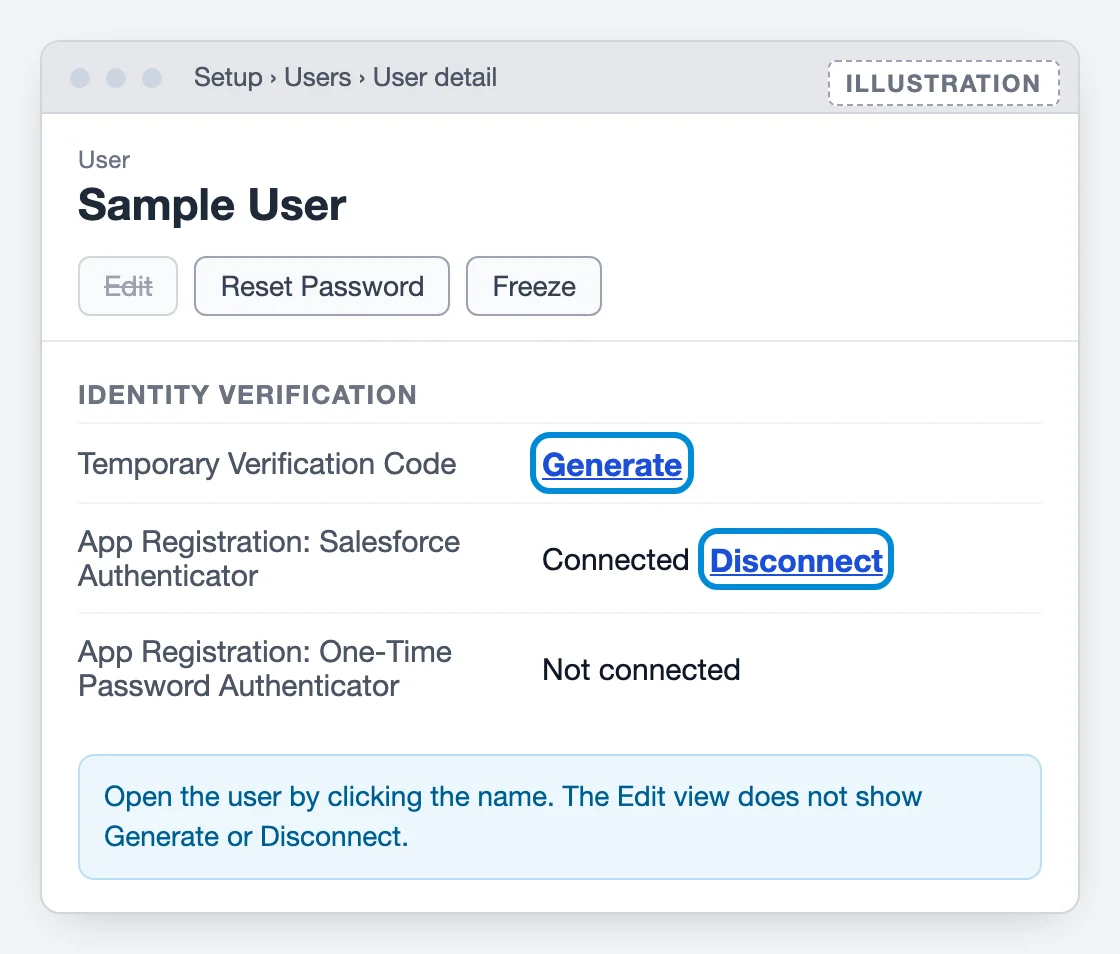
Limits worth knowing before you start: one active code per user, up to six codes per user per hour, no codes for inactive users, and a temporary code satisfies MFA only. It does not pass device activation, the check Salesforce runs when someone logs in from an unrecognized browser or app (Generate a Temporary Verification Code for MFA Logins, Salesforce, read 16 Oct 2026). If the phone was lost or stolen, Salesforce adds two steps: end the user's current sessions first, and review the account for unusual activity after.
Why is there no QR code for Salesforce Authenticator?
Salesforce Authenticator connects with a two-word phrase, where other authenticator apps use a QR code. In the app you tap Connect Your Account, the app shows the phrase, and you type it into the Two-Word Phrase field on the Salesforce screen, then tap Connect in the app (Register Salesforce Authenticator as an Identity Verification Method, Salesforce, read 16 Oct 2026). The QR code belongs to third-party authenticator apps such as Google Authenticator or Microsoft Authenticator, registered under App Registration: One-Time Password Authenticator; if the code cannot be scanned, Salesforce offers I Can't Scan the QR Code and shows a key to type in instead (Register a Third-Party Authenticator App, Salesforce, read 16 Oct 2026).
For businesses on Salesforce
No second Salesforce admin? Set one up before the next lockout.
What not to do while you switch phones
- Do not delete the app or the account on the old phone until the new one is connected or backed up. Removing it first is the documented cause of failed logins during migration (Login Fails After Deleting Authenticator During Device Migration, Salesforce, published 30 Oct 2025).
- Do not keep guessing codes. Past the attempt limit the account locks for a while, and the fix still runs through your admin (Invalid or expired verification code, Salesforce, published 25 Aug 2025).
- Admins: do not switch off MFA for the org to get one person in. Salesforce recommends a temporary code instead of disabling MFA (Generate Temporary MFA Verification Code for Users Unable to Log In, Salesforce, published 30 Jan 2026).
If you are an admin, Salesforce Authenticator no longer gets you in
Since Salesforce began enforcing phishing-resistant MFA (production from 20 July 2026), users with the System Administrator profile or the Modify All Data, View All Data, Customize Application or Author Apex permission can no longer use Salesforce Authenticator or authenticator apps to log in (Prepare for Phishing-Resistant MFA Enforcement for Privileged Users including Admins, Salesforce, published 14 Oct 2026). They need a passkey or a security key. The setup, the methods that qualify and the release-group dates are in Salesforce passkey requirement: what admins have to do. If you are the only admin and cannot get past the login screen, read Locked out of Salesforce before you contact Support.
If your company has no second Salesforce admin
We are an independent Salesforce consultancy, separate from Salesforce Support. We cannot unlock a user, reset MFA or change an admin's email from outside your org; only an admin inside it, or Salesforce, can. What we do is the work that keeps a business from depending on one login: a second admin, a break-glass account, passkeys enrolled for everyone who needs them, and SSO and integrations that keep working through the next change. That is the admin work inside our Salesforce managed services.
Frequently asked questions
How do I set up Salesforce Authenticator on a new phone?
If you still have the old phone and backed up your accounts, install the app on the new phone, answer Yes when it asks whether you used Salesforce Authenticator on another device, and restore with your email address and backup passcode. Without the old phone or a backup, your Salesforce admin disconnects the app from your user record first; at your next login Salesforce asks you to connect it again with a two-word phrase.
Why is my Salesforce Authenticator code not working?
Salesforce lists two causes for "Invalid or expired verification code": a broken connection between Salesforce Authenticator and your account, which an admin fixes by disconnecting the app so you can reconnect it, and, for third-party authenticator apps, a phone clock that is out of sync. Stop before you hit the attempt limit, because the account then locks temporarily.
Can I use Salesforce Authenticator on two phones?
No. Connected accounts are active on one device at a time. Transferring a backup to a new phone ends their use on the old one.
How do I generate a temporary verification code in Salesforce?
An admin with the Manage Multi-Factor Authentication in User Interface permission opens Setup, Users, clicks the user's name (not Edit), clicks Generate next to Temporary Verification Code, sets an expiry of 1 to 24 hours and selects Generate Code. The code can be used repeatedly until it expires, one code per user at a time, up to six codes per user per hour.
What if my Salesforce admin can't help?
Salesforce's troubleshooting page says to contact your Salesforce administrator first and Salesforce Customer Support if that does not work. If you cannot log in to open a case, Salesforce Help suggests asking your admin or a colleague with access to log it for you.