
ApexGenius brings your apps and skills into one connection you can take from agent to agent. With one Salesforce named credential, your org joins that connection: Apex and Lightning web components can call the apps you connected in ApexGenius, such as GitHub, Jira or Slack, and each app's own token stays out of Salesforce.
This path uses standard Salesforce Setup and your own Apex. We build ApexGenius, so read this as the vendor's guide. If external credentials and principals are new to you, start with Salesforce named credentials explained.
Do I have a Client ID and Client Secret?
Salesforce asks for both because it is running a standard OAuth 2.0 client credentials flow, where most systems issue a pair. ApexGenius issues only the key. When Salesforce asks for a token, ApexGenius checks the key, stores the Client ID as a label, and returns the key as the access token.
The label can be anything that helps you recognize the caller, and the agent's name is a good choice. It still has to be there. Salesforce shows Complete this field if you leave Client ID blank, and ApexGenius refuses a token request without one.
| Salesforce field | Where it lives | What to enter |
|---|---|---|
| Identity Provider URL | External credential | https://server.autom8.pro/oauth/token |
| URL | Named credential | https://server.autom8.pro/mcp |
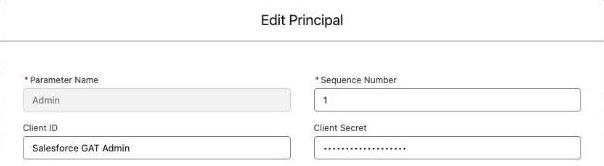
| Client ID | Principal on the external credential | A label you choose, such as the agent's name |
| Client Secret | Principal on the external credential | Your ApexGenius API key |
Where the key goes in Salesforce
A named credential holds the address. It points at an external credential, which holds the sign-in method, and the external credential's principal holds the secret. People look for a key field on the named credential because that is the page they opened first, and there isn't one.
 Your Salesforce org
Lightning web component
The button your user clicks
Apex class
Names the credential. Holds no key.
Named credential
Your API key sits on its principal, locked in Setup.
 ApexGenius
Checks what this agent may use, then runs the call in the app.
 GitHub
 Jira
 Slack
Each app's own token stays here, out of Salesforce.
Set it up step by step
A person does steps 1 and 4. Treat the key like a password: it goes from the ApexGenius page straight into Setup.
- Create the key in ApexGenius. Open Agent/API access, click Add an agent, and pick API key. Name it after the org, choose its access, and copy the key before you leave the page. You will not see it again. A key made any other way is refused as unscoped.
- Create the external credential. In Setup, find Named Credentials in Quick Find, open External Credentials, and click New. Fill in Label and Name. Set Authentication Protocol to OAuth 2.0, Authentication Flow Type to Client Credentials with Client Secret Flow, and Identity Provider URL to
https://server.autom8.pro/oauth/token. Turn on Pass client credentials in request body, then save. - Create the named credential. Back on Named Credentials, click New. Enter a Label and a Name, which is what your Apex will use. Our sample below uses
ApexGenius. Set URL tohttps://server.autom8.pro/mcp, keep Enabled for Callouts and Generate Authorization Header on, pick the external credential from step 2, and save. - Add the key to the principal. Open the external credential and scroll to Principals. Click New, or use Actions, Edit on an existing principal. Client ID is your label. Client Secret is the key from step 1. Save. Salesforce asks you to URL-encode special characters in these two fields. ApexGenius keys use only letters, numbers and an underscore, so paste the key as it is and keep your label to letters, numbers and hyphens.
- Check the status. The principal's Authentication Status should now say Configured.
- Grant the principal. Open a permission set, click External Credential Principal Access in the Apps section, click Edit, move the principal to Enabled, and save. Assign that permission set to the people who use the feature. They also need Read on User External Credentials, which most standard permission sets include and some custom ones do not. Find it under Object Settings. The feature needs its own access too, such as its Apex class.
- Allow the agent its apps and tools. In ApexGenius, give this agent the connections and tools the feature needs. Custom access with read tools is a sensible start. After a change, allow about a minute before you test.
- Make one real call. Run the feature, then look for the agent's Last call on Your agents.
How to tell it worked
Two signals, in this order. The first is the principal's Authentication Status changing from Not Configured to Configured. Salesforce says this field shows that the required setup steps are done and that it does not verify the connection to the external system, so a mistyped key can still read Configured.

The second is the proof. Make a real call from the feature and open Your agents in ApexGenius. The agent should show a Last call time. If it still says No calls yet, the request never arrived.
Why Not Configured stops every callout
While the principal says Not Configured, Salesforce has no key to send. Every callout fails inside Salesforce before it reaches ApexGenius, so ApexGenius has nothing to log and no error of its own to show. A CalloutException with no matching call in ApexGenius usually means this, or a user without the permission set from step 6. Check Setup before you look anywhere else.
You will see this again after a sandbox refresh or in a new org. A person enters the key on the principal again and rechecks the status.
Call ApexGenius from Apex
A Lightning web component calls an @AuraEnabled Apex method, and that method makes the callout. The request is a single JSON-RPC POST, with no initialize handshake or session to manage.
Map<String, Object> toolArgs = new Map<String, Object>{ 'owner' => 'your-org', 'repo' => 'your-repo'}; HttpRequest req = new HttpRequest();req.setEndpoint('callout:ApexGenius');req.setMethod('POST');req.setTimeout(20000);req.setHeader('Content-Type', 'application/json');req.setHeader('Accept', 'application/json');req.setBody(JSON.serialize(new Map<String, Object>{ 'jsonrpc' => '2.0', 'id' => 1, 'method' => 'tools/call', 'params' => new Map<String, Object>{ 'name' => 'apex_call_read_tool', // apex_call_write_tool for a write 'arguments' => new Map<String, Object>{ 'tool_name' => 'github_call_read_tool', // the exact inner tool 'arguments' => new Map<String, Object>{ 'remote_tool_name' => 'list_branches', 'arguments' => toolArgs } } }}));HttpResponse res = new Http().send(req);The tool names here are examples. Find the exact names and argument schemas with apex_search_tools first, because they differ from app to app.
Each call costs one ApexGenius credit, so load data when the page opens and on a Refresh button, and poll only while something is in progress. Allow 20 seconds per call. Apex allows 100 callouts per transaction.
Read the response
result.content[0].textholds the app's JSON as a string. It can contain one more MCP result ({"content": [...]}) inside, so unwrap until it does not.result.isError = truemeans the tool refused or failed, and the text says why.- A JSON-RPC
error, or HTTP 401 or 403, means the sign-in failed.
Errors to show your users
Turn every failure into one sentence that names what to check. Pass ApexGenius refusal text through as it is, because it names the layer that said no. In an @AuraEnabled method, throw AuraHandledException and call setMessage.
| What you see | What it means | Where to look |
|---|---|---|
CalloutException, no Last call in ApexGenius | The principal is Not Configured, or the user lacks the permission set | The credential and permission sets in Setup |
| HTTP 401 or 403, or a JSON-RPC error | The sign-in failed, often a mistyped or revoked key | Client Secret on the principal, and the key in ApexGenius |
| That account is not available to this client. | This agent has no access to that connection | The agent's connections in ApexGenius |
| This action is outside this client's scope. Ask the owner to update access in ApexGenius. | The tool is off the agent's list, or a Read only agent tried a write | The agent's tools in ApexGenius |
In tests, mock the callout with HttpCalloutMock and cover the 401 path and an isError result.
Keep the key out of git
The key is typed by a person into Setup and goes nowhere else: no Apex, no custom metadata, no repository, no chat with an AI agent. Make one agent per org so each key can be revoked alone. Revoking the key in ApexGenius ends the Salesforce sign-in too.
Frequently asked questions
Does ApexGenius give me a Client ID and Client Secret?
It gives you one thing, an API key, and that key is the Client Secret. ApexGenius does not issue a Client ID. You make one up, such as the name of the agent, and ApexGenius stores it as a label.
Where do I put the API key in a Salesforce named credential?
On the principal of the external credential. Open the external credential, scroll to Principals, and use Actions, then Edit. The named credential has no field for the key.
Why does Salesforce say Complete this field on Client ID?
Client ID is required and cannot be empty. Type a label, such as the agent's name. ApexGenius also refuses a token request with an empty Client ID.
How do I know the named credential works?
First, the principal's Authentication Status changes from Not Configured to Configured. That only confirms the setup is complete, so make one real call next and check that the agent shows a Last call on Your agents in ApexGenius.
Why do my callouts fail with nothing showing in ApexGenius?
The callout never left Salesforce. The usual causes are a principal that still says Not Configured, or a user whose permission set does not grant the principal. Check Setup first.
Do I have to enter the key again after a sandbox refresh?
Yes. A sandbox refresh or a new org needs a person to enter the key on the principal again and confirm that Authentication Status says Configured.